




In this article I’ll show you how to trade on TradingView with an Apex Trader Funding account. Setting this up will give you live futures market data, instead of the delayed data with a free account.
Purchase Apex Tradovate Evaluation (Use Discount Code TPJ)
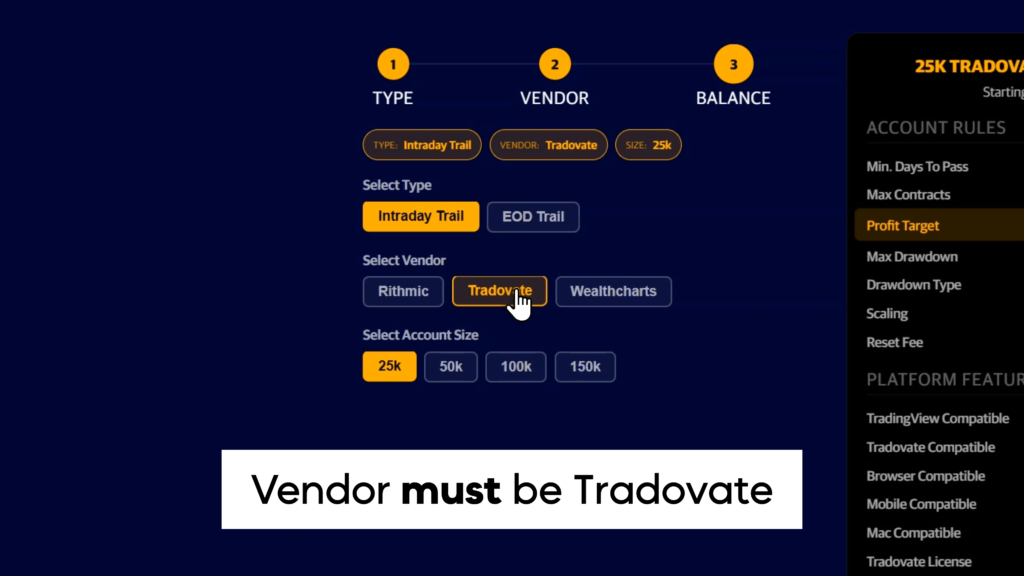
First, you must purchase an Apex Tradovate evaluation. The other vendors are not compatible with TradingView. If I had to recommend an account, I’d choose an End Of Day Trailing $50k account, you can check my full Apex review for the reasoning.

Use discount code TPJ for the highest possible discount, which is usually 90% off.
 Buy Apex Trader Funding Challenges

Get Tradovate Credentials & Activate Account
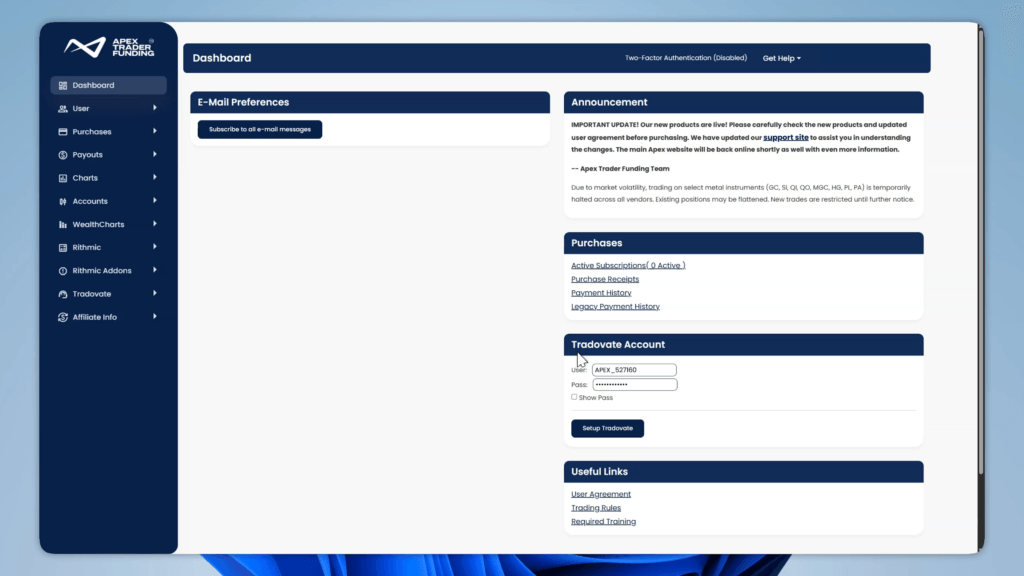
Once you have purchased your account, go to your Apex dashboard.
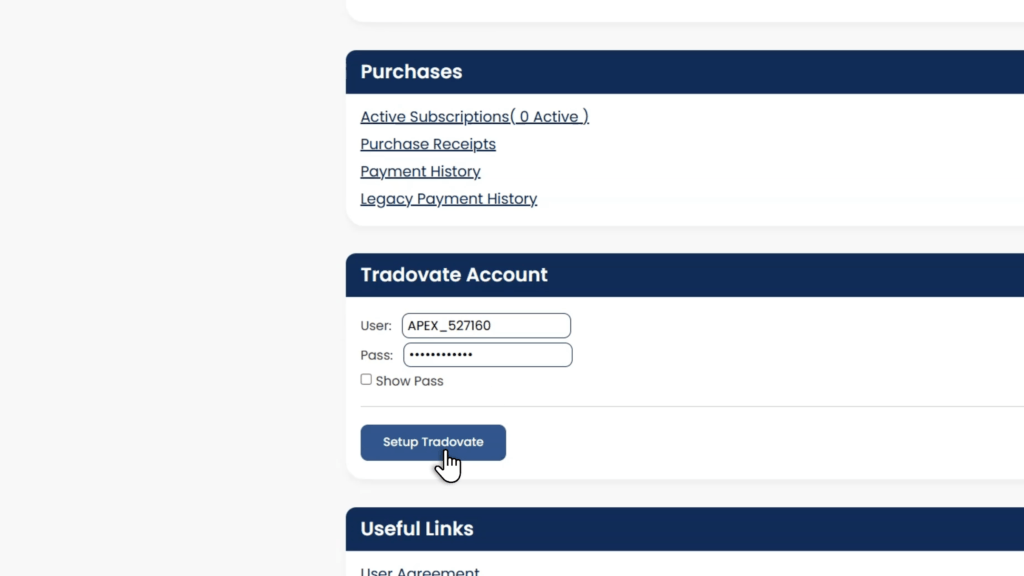
Your Tradovate Account credentials should be in the bottom right.
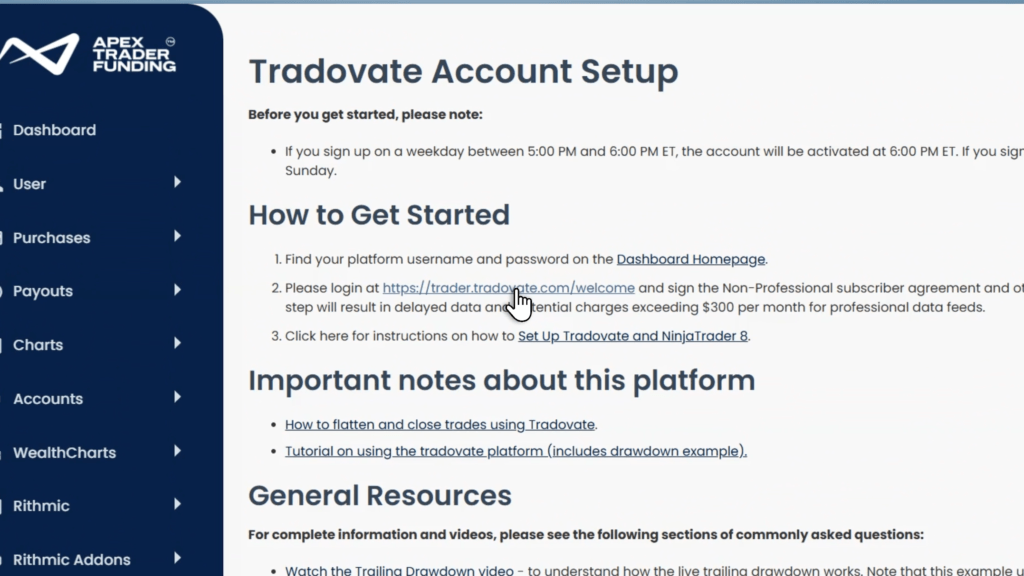
Click the set up Tradovate button, then click the welcome link.
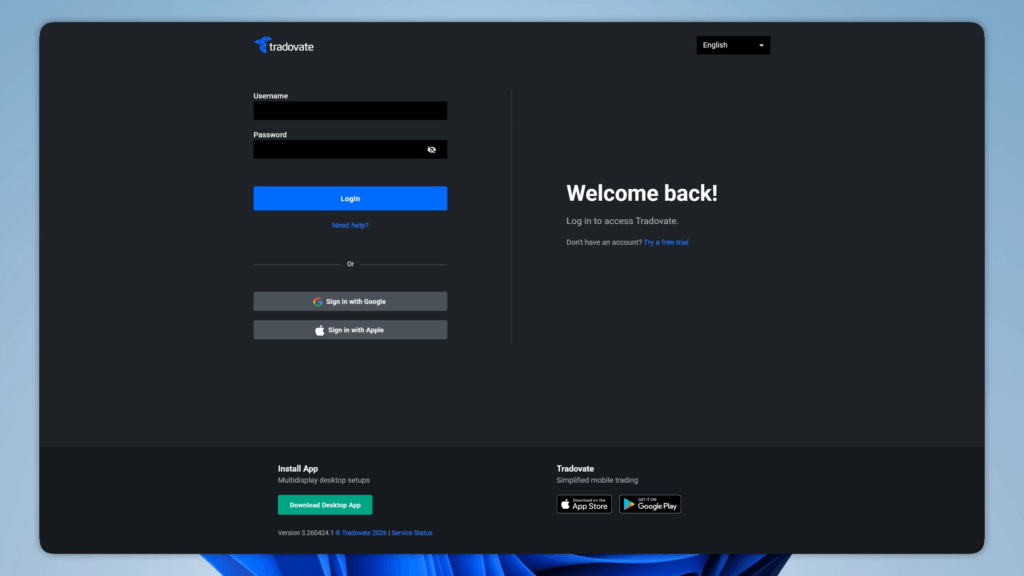
Log in with your provided credentials.
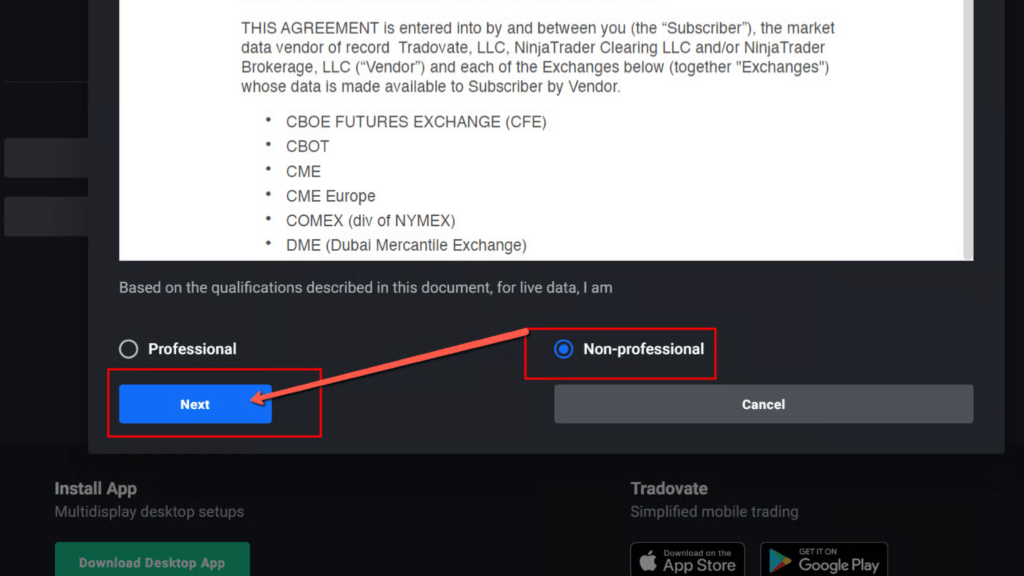
Select non-professional, then accept all terms and conditions. Then click launch simulation trading.
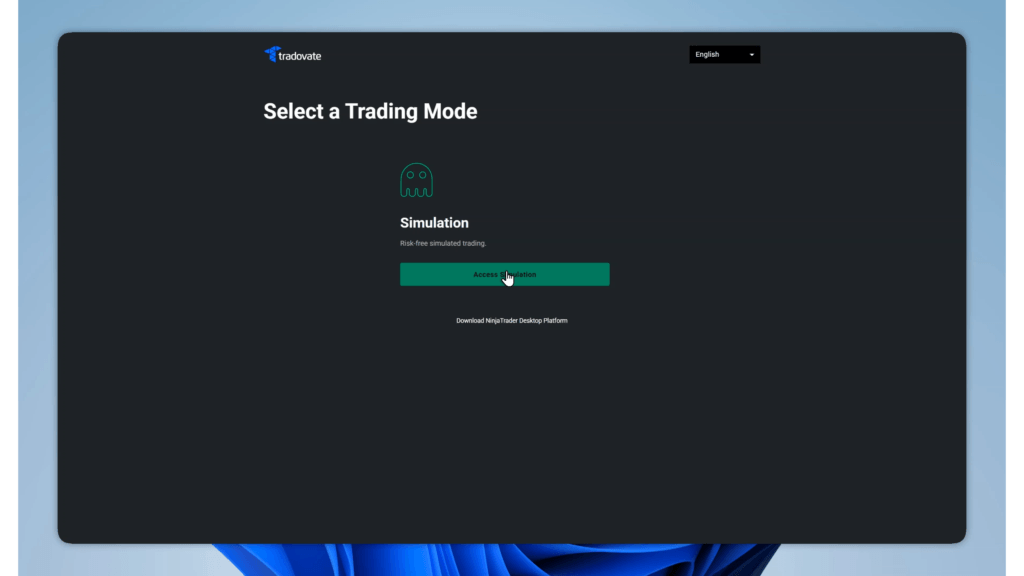
Activate TradingView Add-on
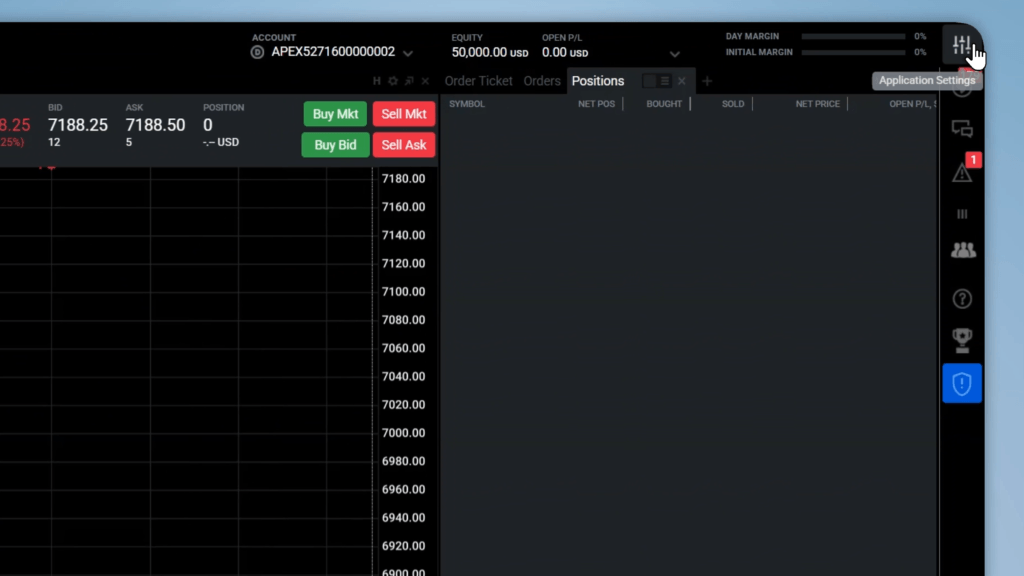
In the top right go to the settings, then select the add-ons tab. Click activate on the TradingView add-on.
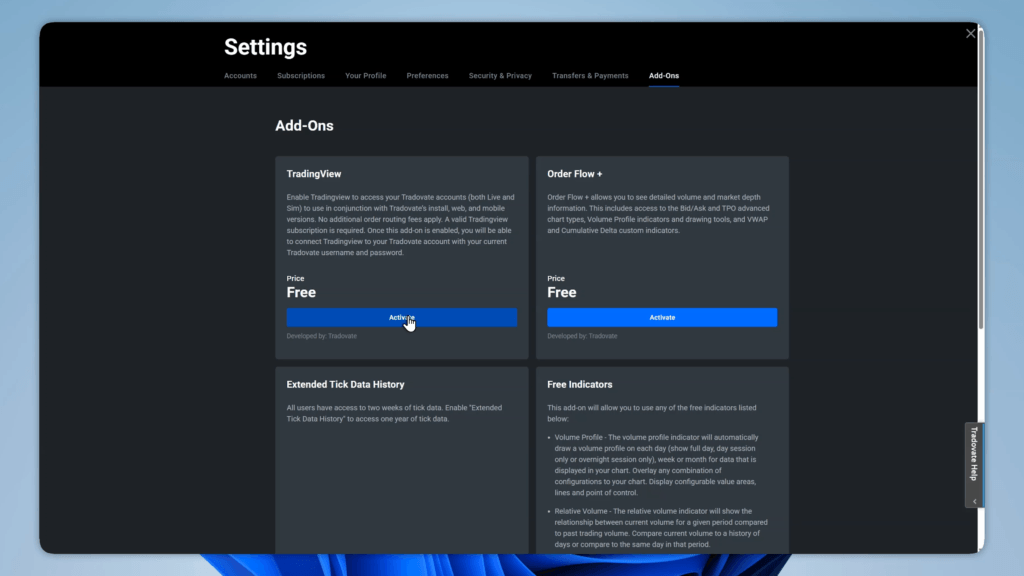
Connect Tradovate to TradingView
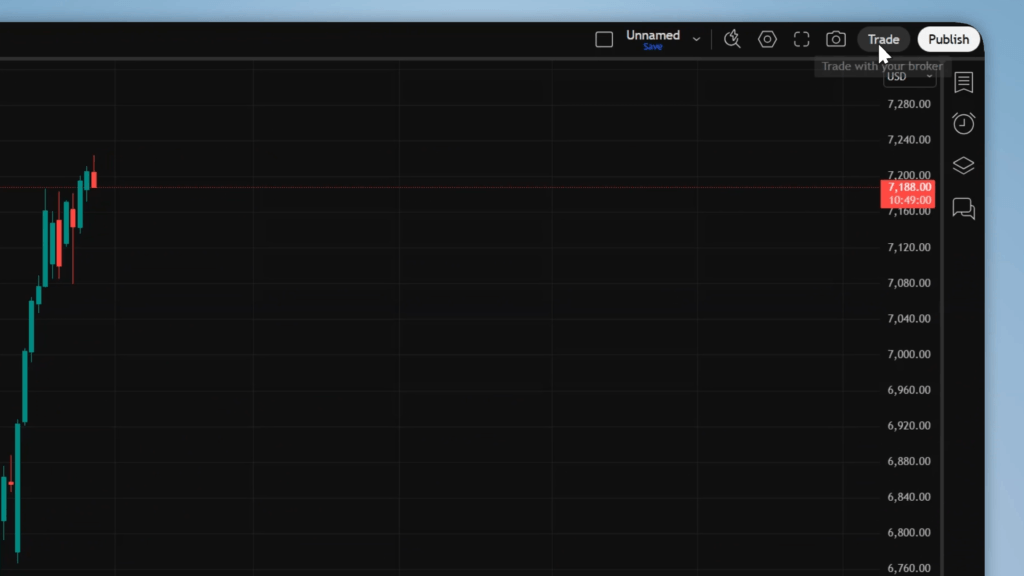
Now go to TradingView. Click the trade button in the top right, then choose Tradovate.
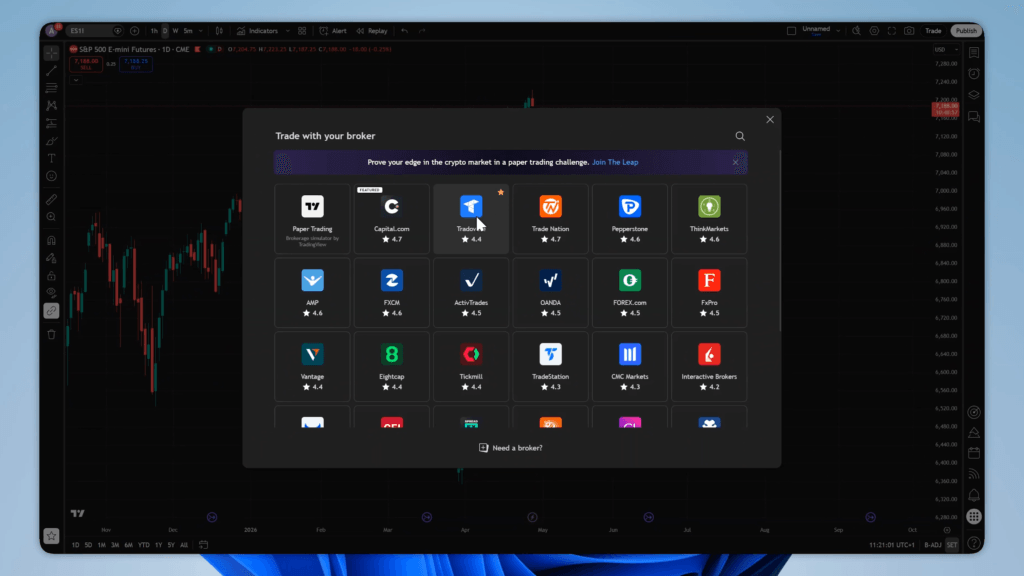
Choose demo, then click connect. Log in with the same details as before.
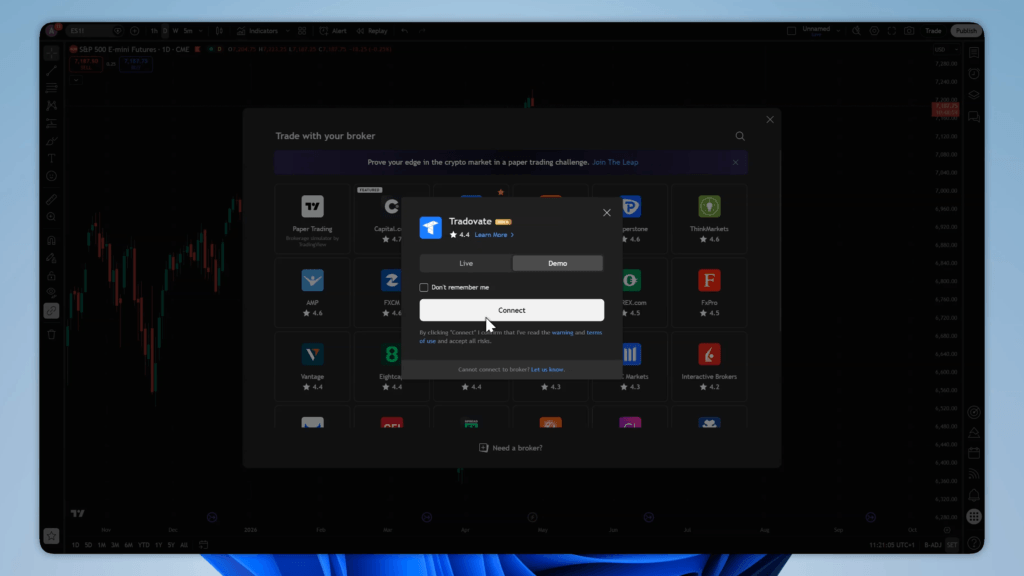
Now your Apex account is connected to TradingView, you can click the trade button to open the trading panel, and you will now have live futures market data.
Conclusion
Thanks for reading, we hope this helped you connect your Apex account to TradingView, good luck with your evaluation!
Make sure to check out my prop firm reviews, prop firm discounts and join my Discord server for giveaways.